Follow one step at a time. The longest step is a one-time download. If something looks different on your computer, use the Help page or book a free call.
You will install Claude, download The Yap Machine, run its installer, then make one tiny test video. You only do this once.
If you can download a photo from an email, you can do this. If you get stuck, there is a real person on the other side of the install call.
Claude is a separate company. Your Claude plan is billed by them, not by us. The Yap Machine needs a paid plan, Pro or higher.
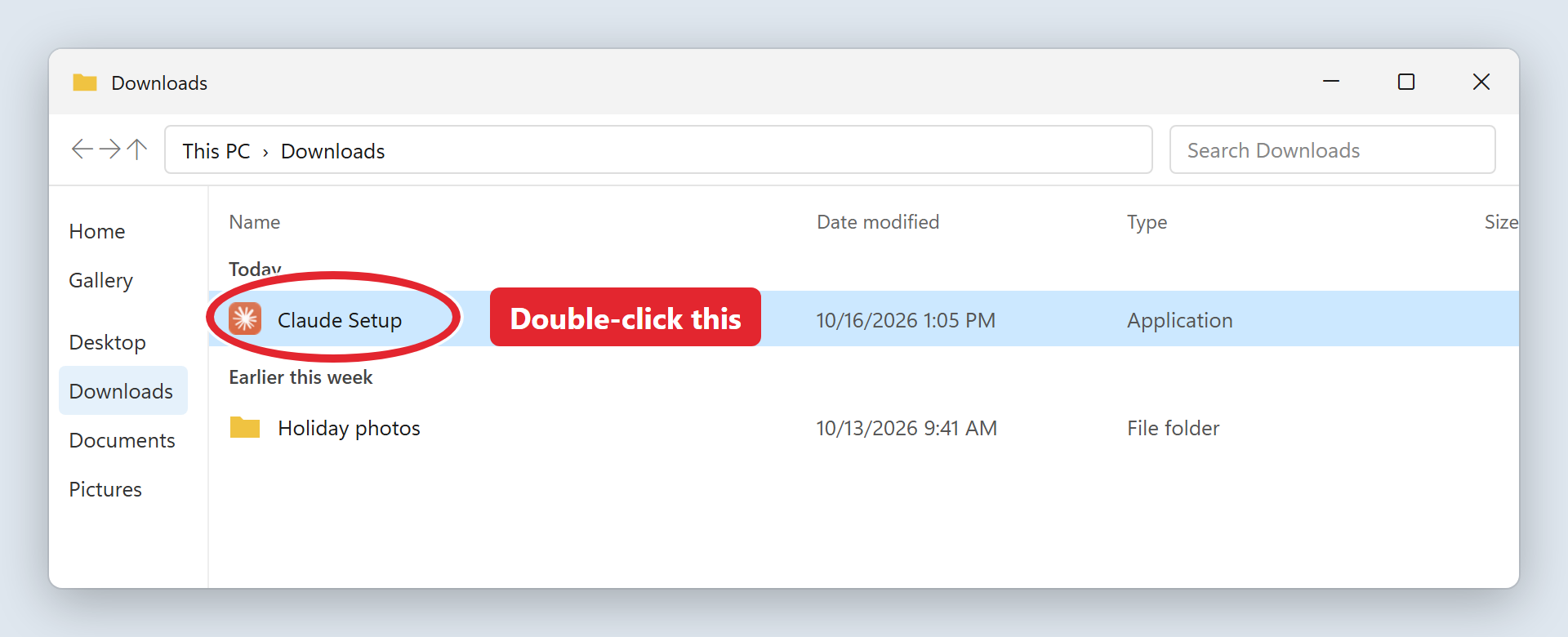
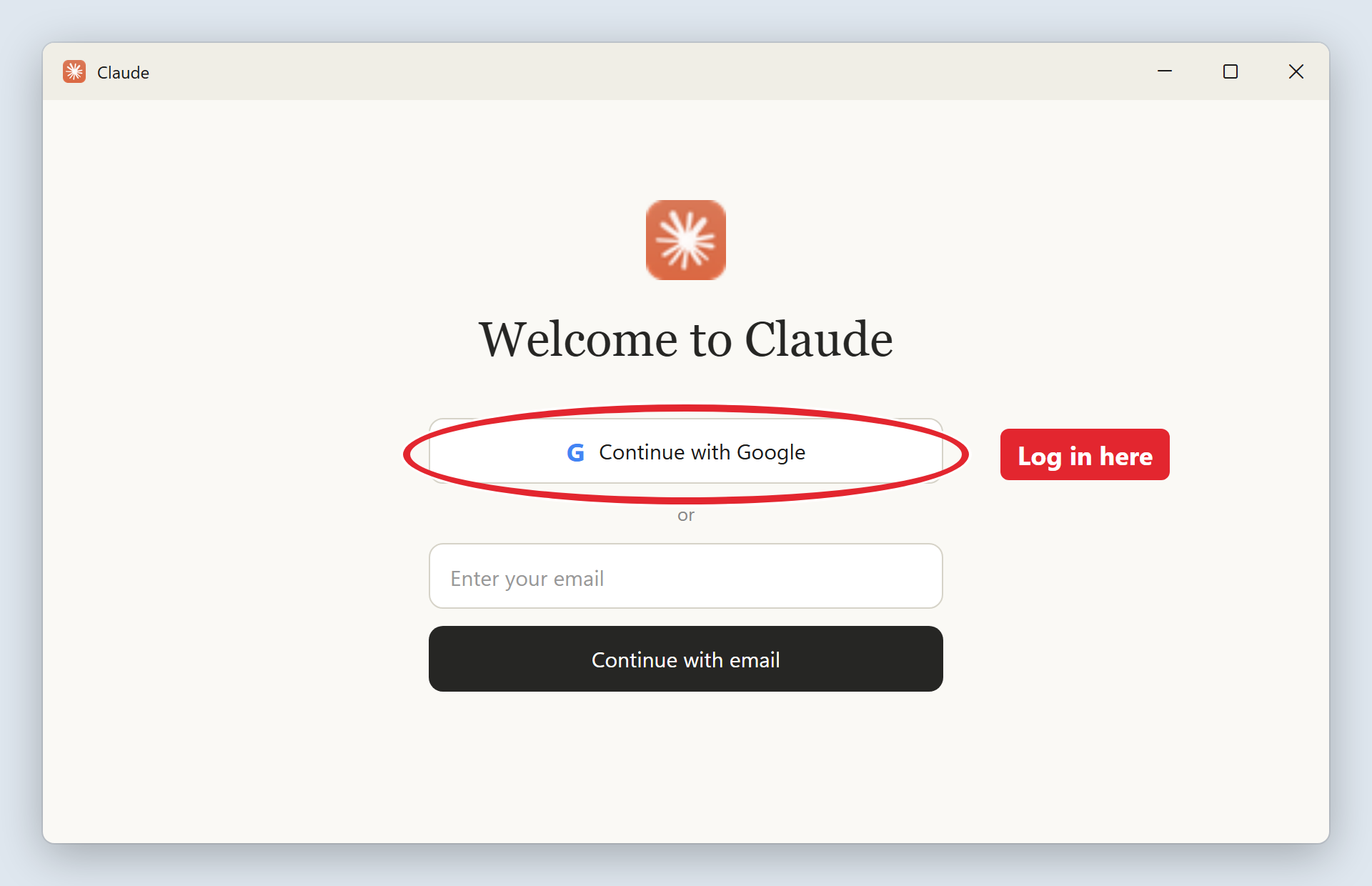
Open Claude and look along the top or left side for a tab called Code. If it is not there, check that your plan is active and Claude is up to date. If it asks for Git, continue with this guide. The Yap Machine installer adds Git for you.
Open your delivery email and use your personal download link. The public website does not hand out the paid ZIP.
Use the personal download link in your delivery email. If you cannot find it, book a free install call and the team will help.
The next step is to extract it. A ZIP is just a folder that has been squashed into one file so it downloads faster.
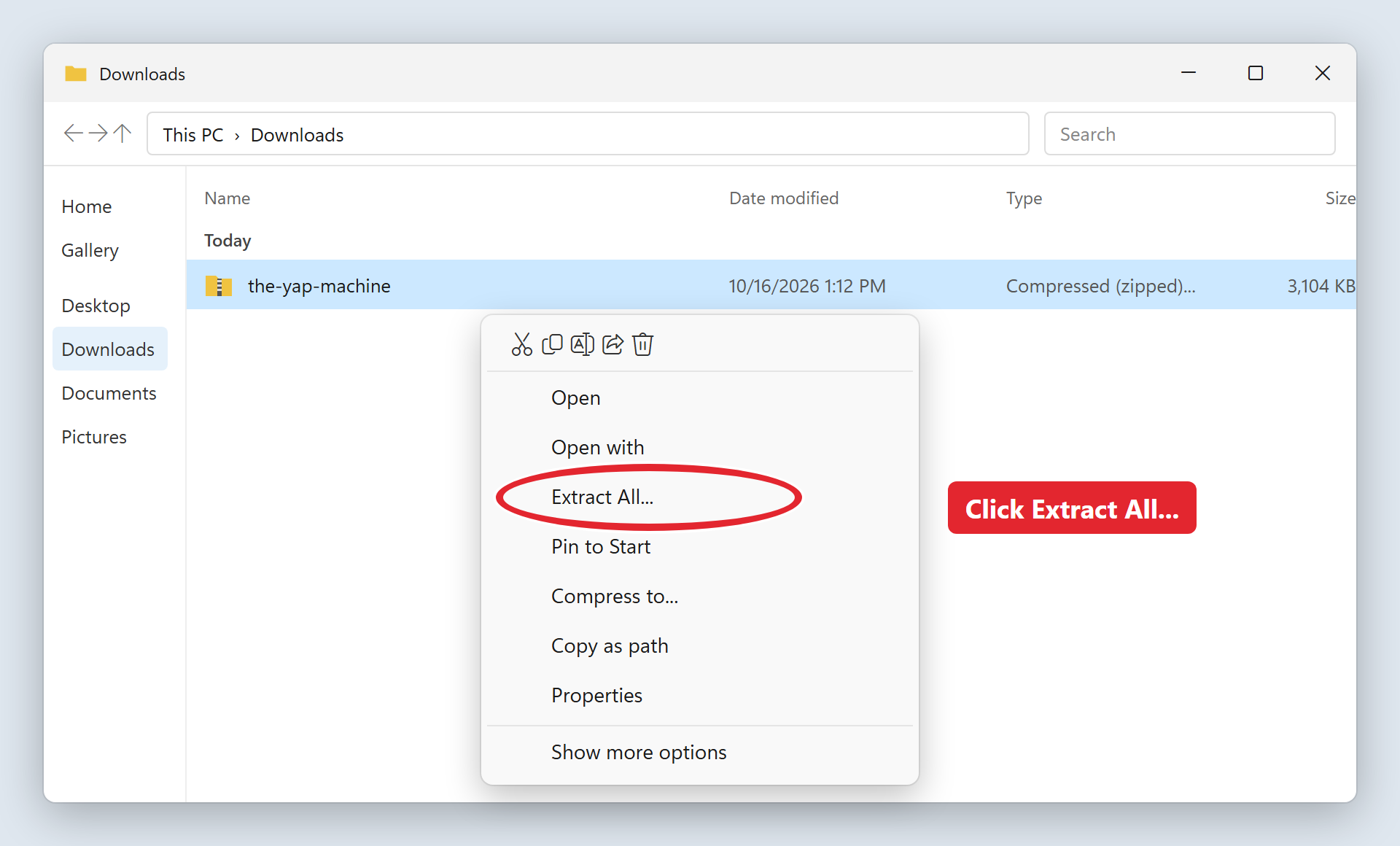
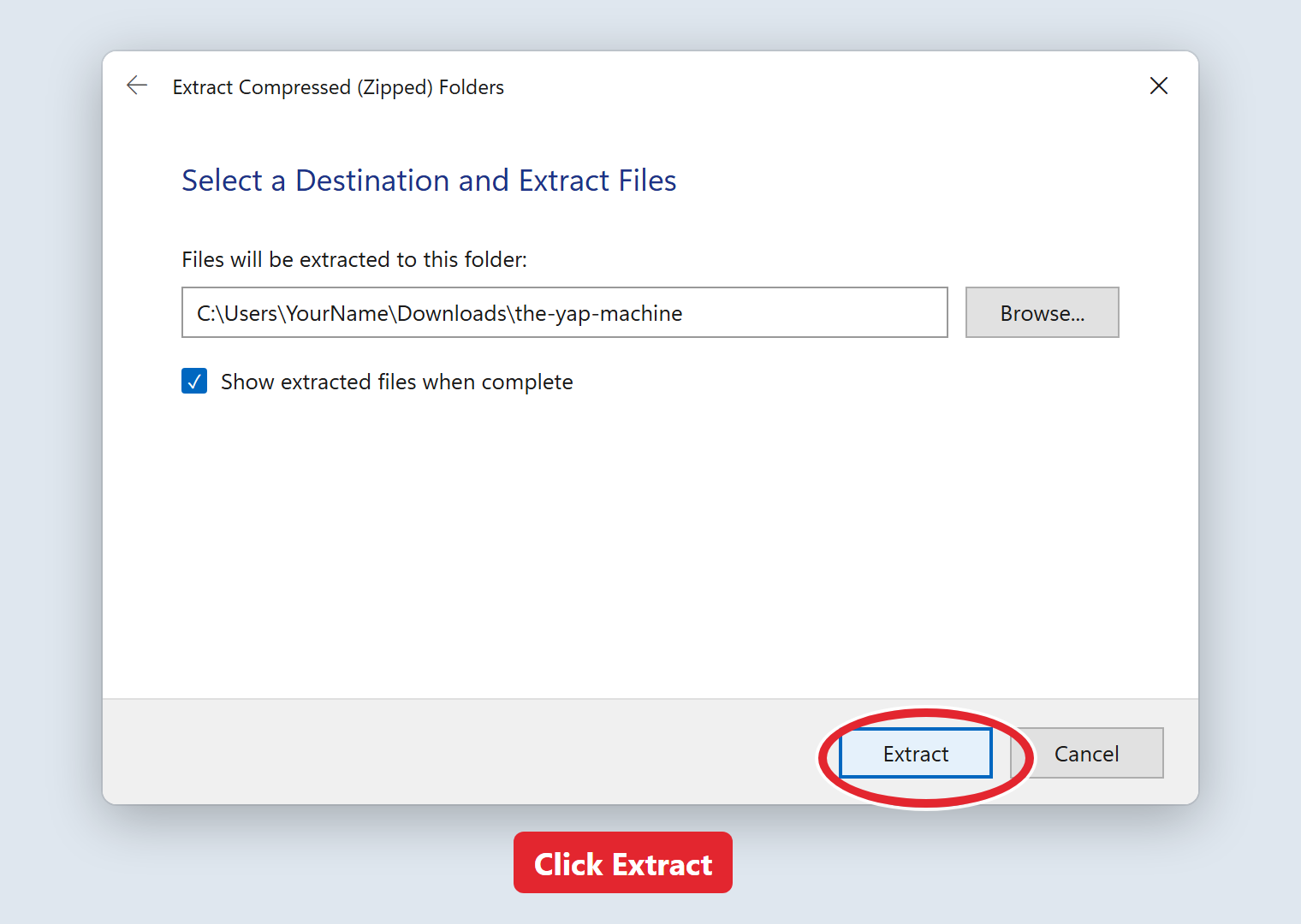
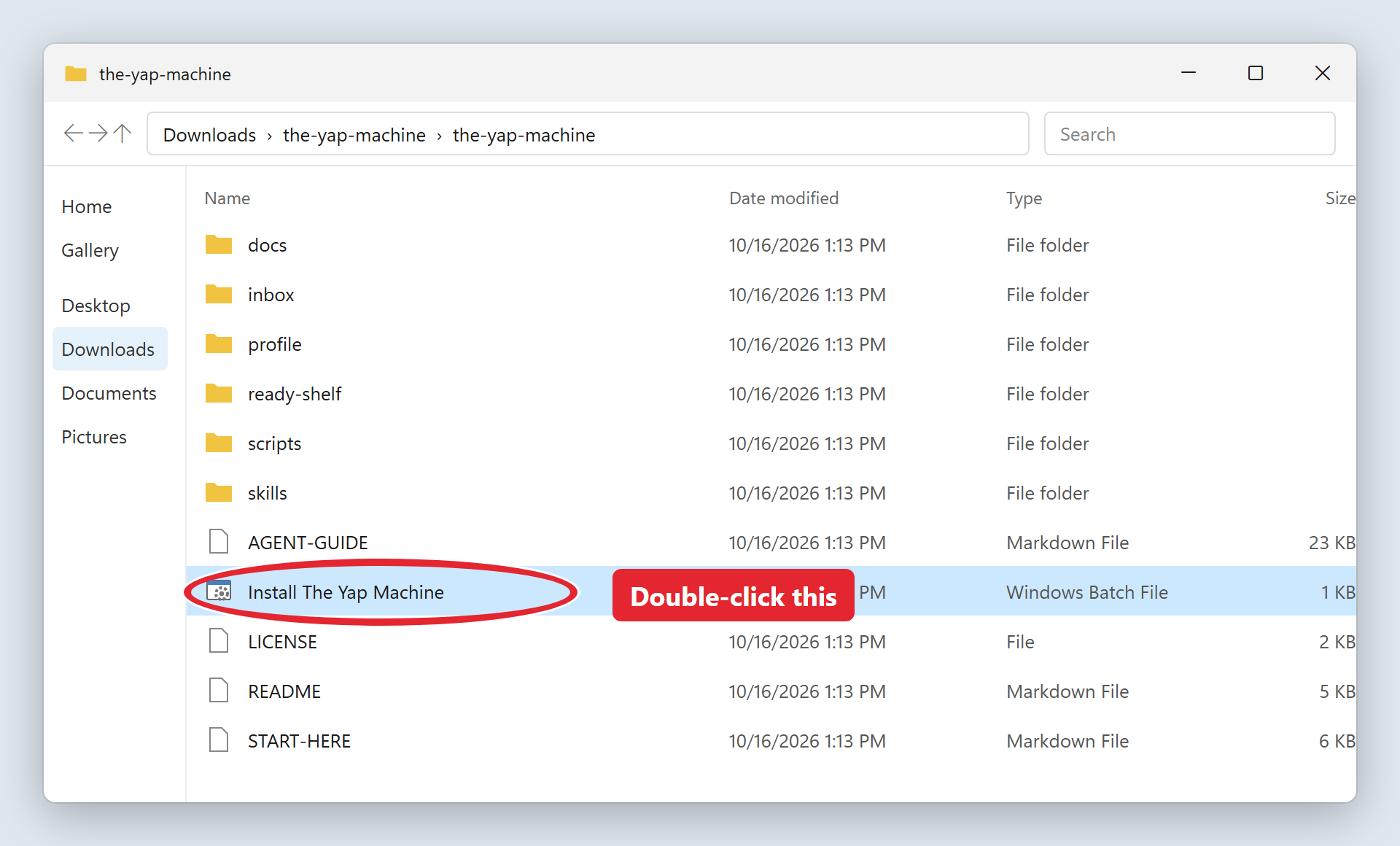
Write down or photograph the folder address it shows you.
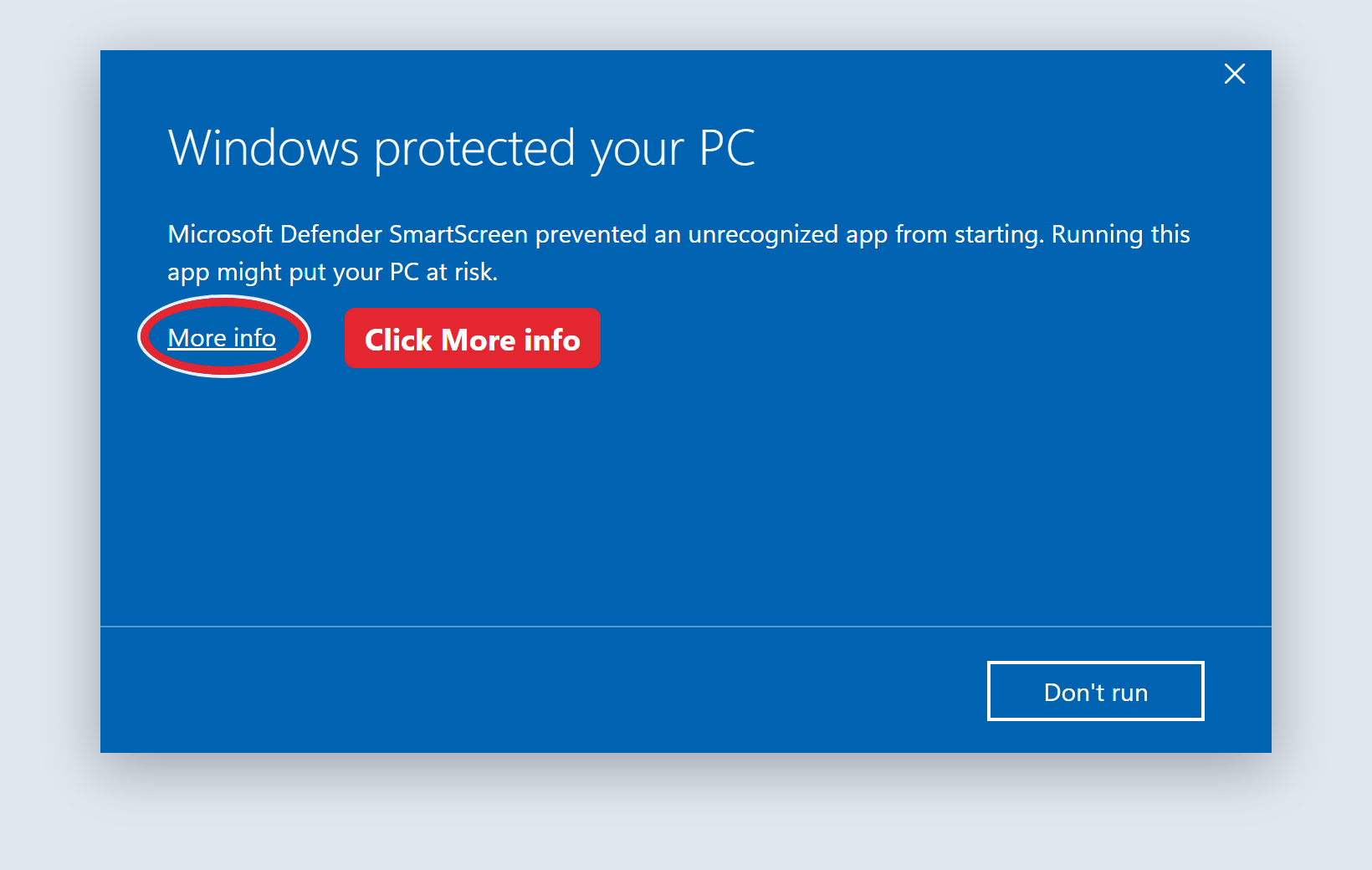
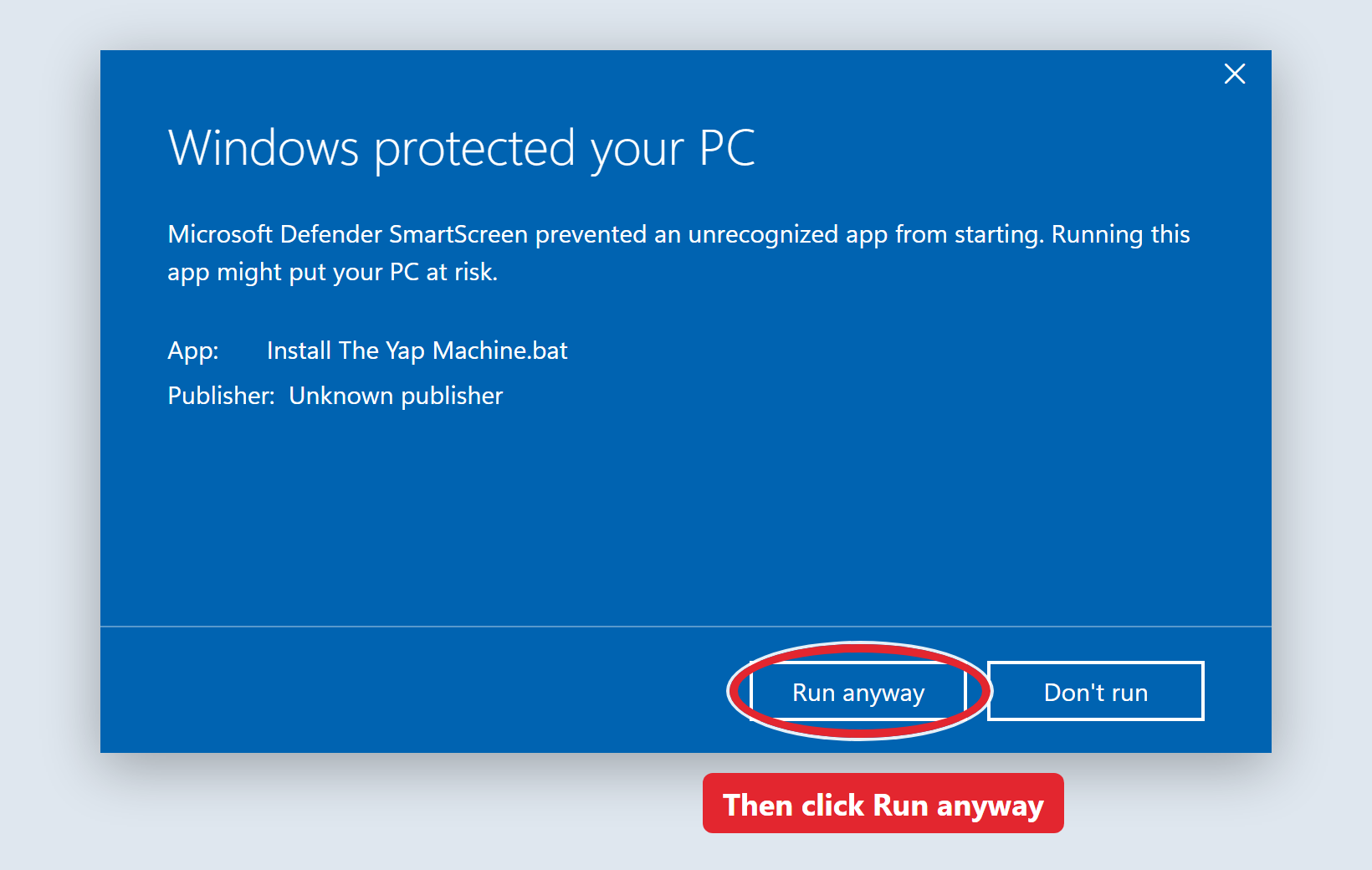
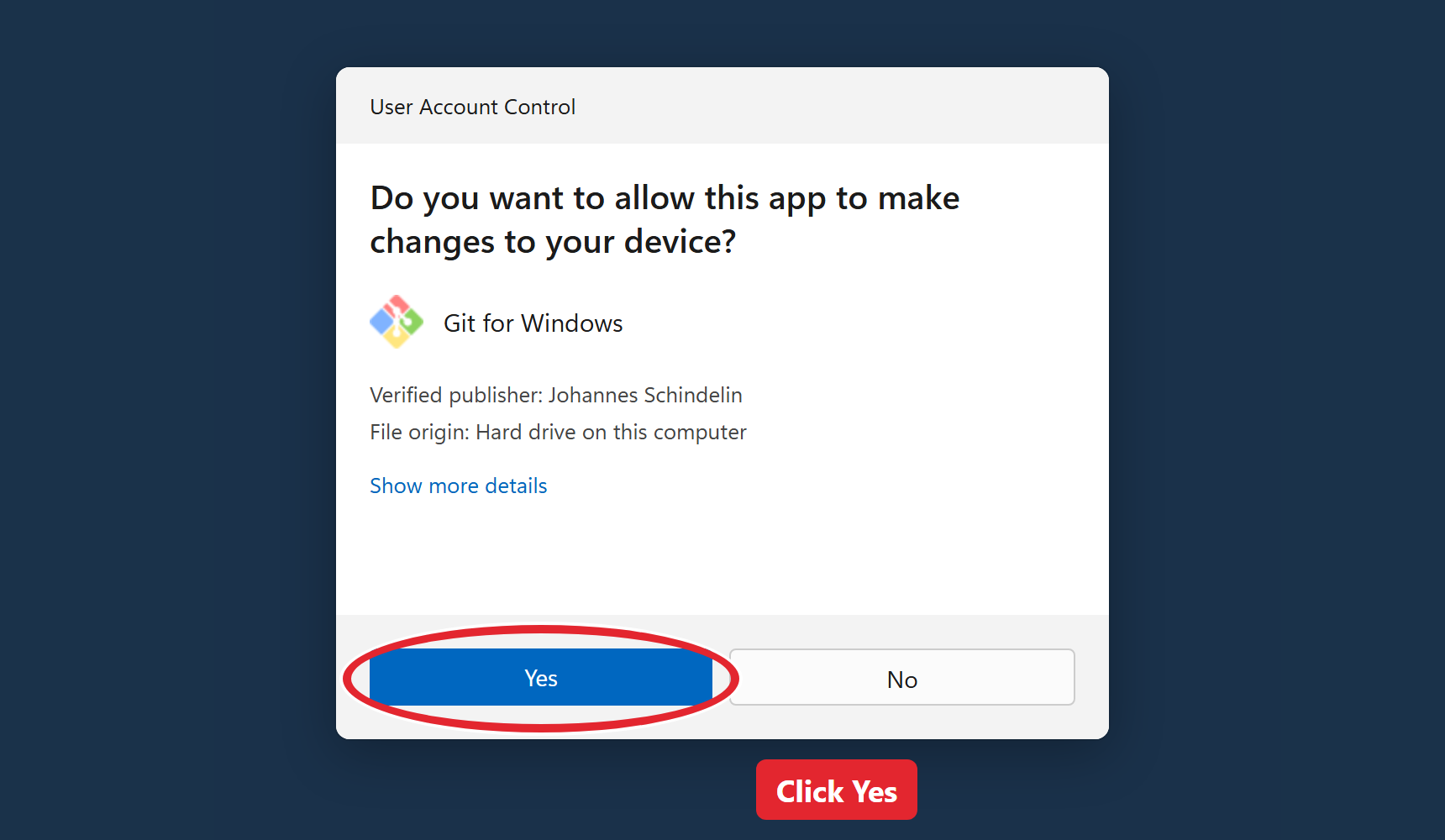
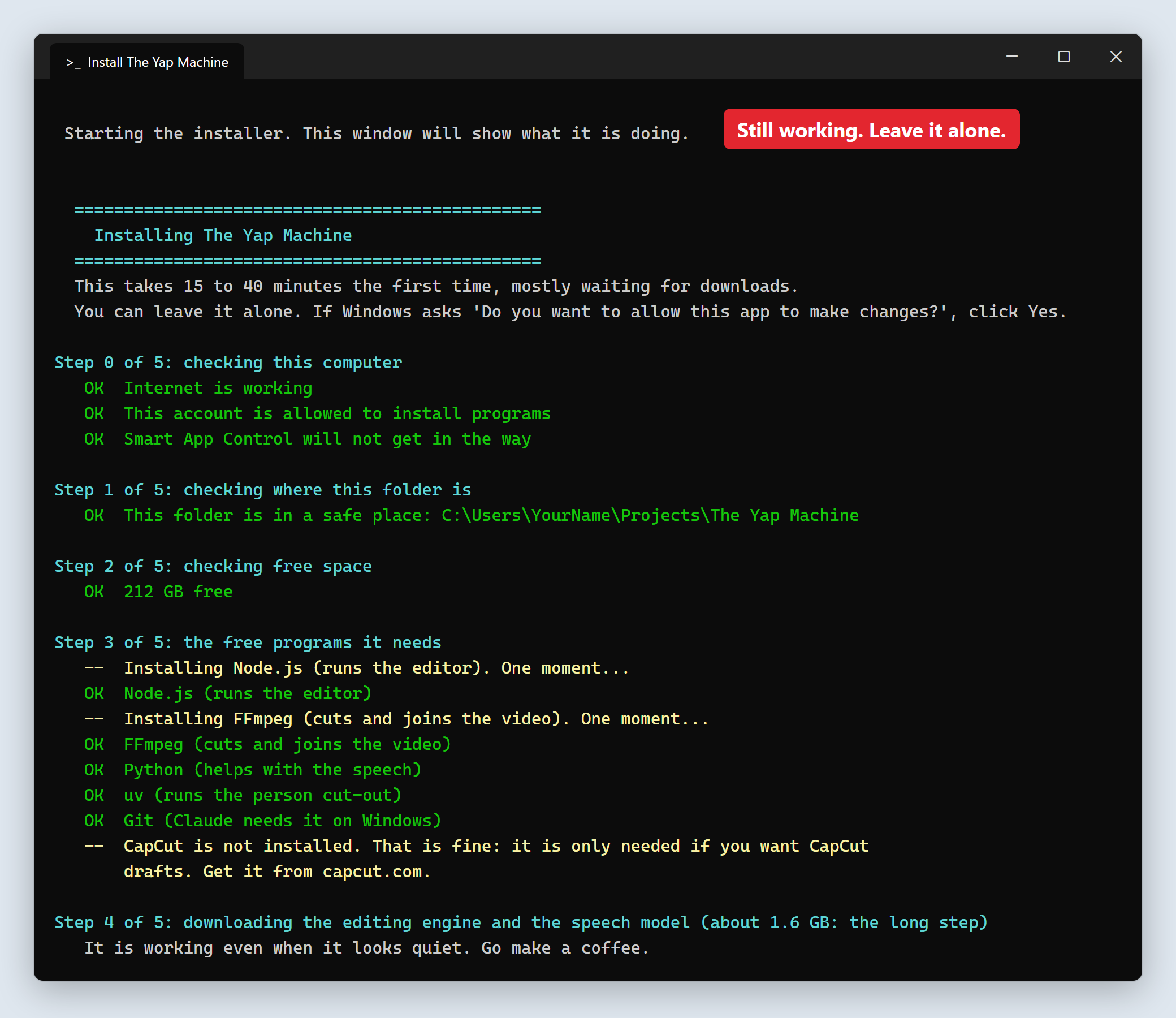
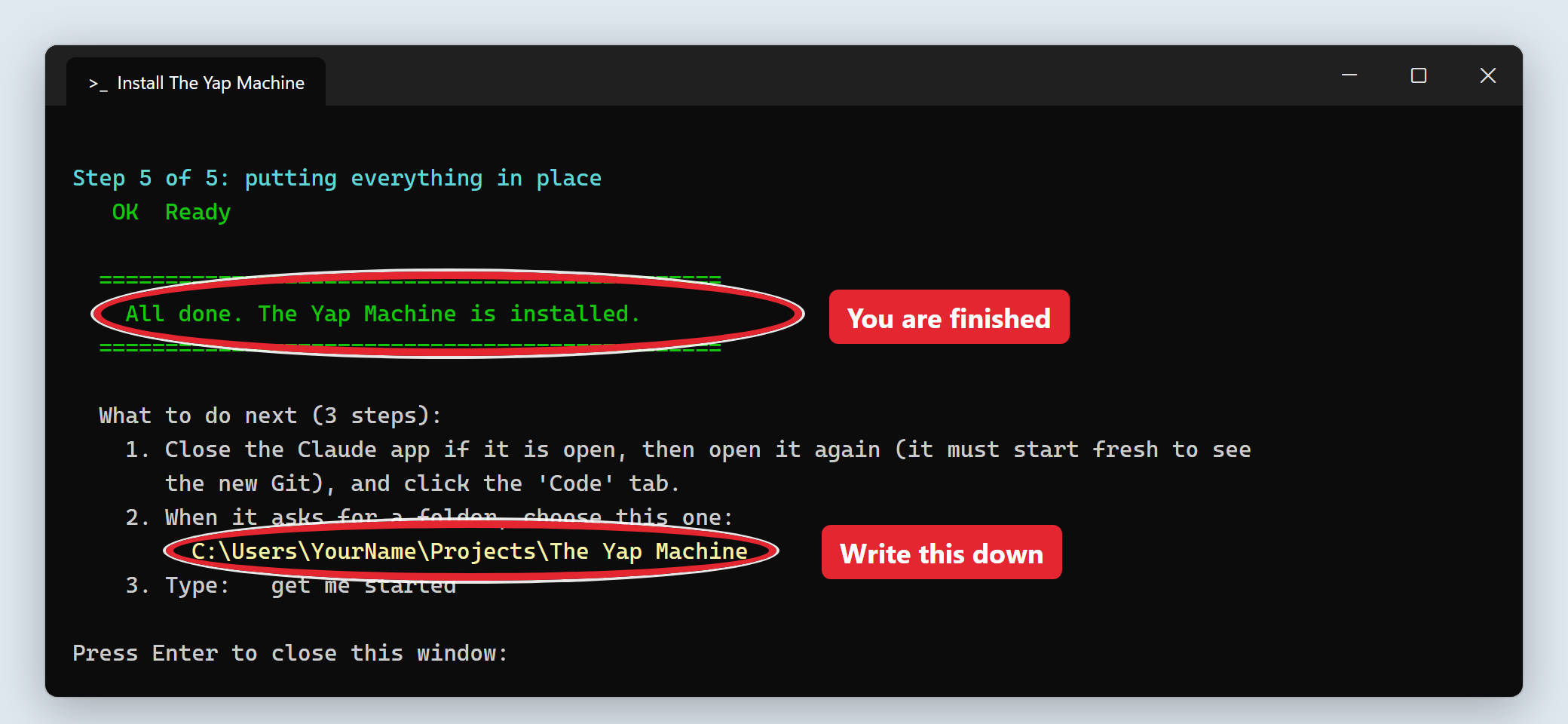
Do not turn Smart App Control or your antivirus off permanently. If something is blocked, use the Help page or book a call.
The Yap Machine checks everything and tells you in plain words if anything is missing. If it asks to allow something, read it and click Allow.
Click the button when you have completed this step. It helps us see where people need more help.
Bring one short video to a free install call and the team will walk through it with you.
Book a free install call